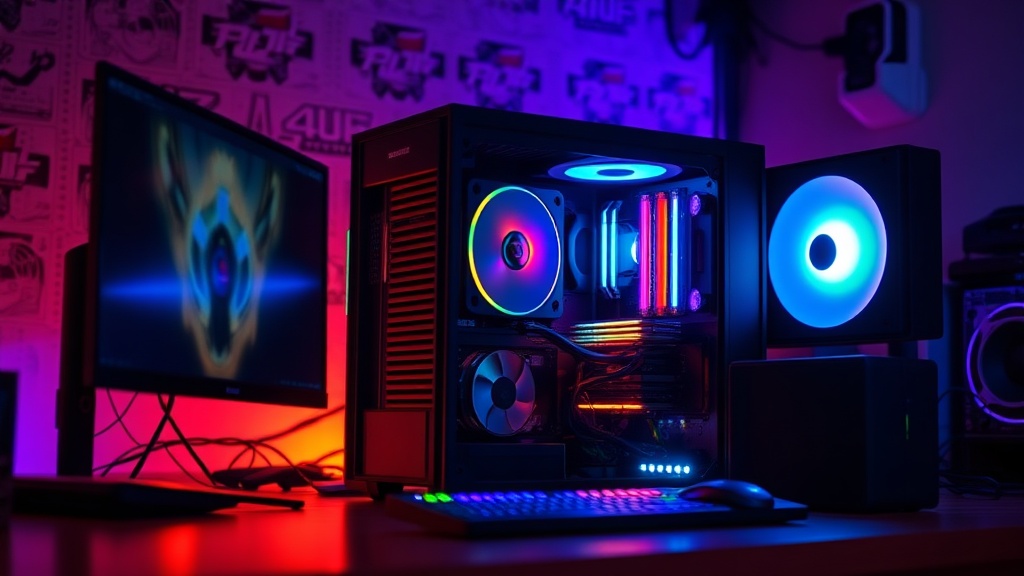
Ultimate Beginner's Guide to Building Your First Gaming PC

This guide covers everything needed to build a gaming PC from scratch — parts selection, assembly steps, software setup, and common pitfalls to avoid. Building a PC delivers better value than pre-built systems, teaches valuable skills, and creates a machine tailored to exact needs. Whether the goal is competitive esports, immersive RPGs, or content creation, assembling a custom rig puts control back where it belongs: in the hands of the person using it.
What Parts Do You Need to Build a Gaming PC?
You'll need seven core components: a CPU (processor), GPU (graphics card), motherboard, RAM (memory), storage drive, power supply, and a case to house everything. Each plays a distinct role, and understanding how they interact helps avoid expensive mismatches.
The Brain: CPU and GPU
The CPU handles game logic, physics, and background tasks. For gaming, the AMD Ryzen 5 7600X and Intel Core i5-13600K represent the sweet spot — plenty of cores for modern titles without overspending. The catch? Don't blow the budget here while neglecting the GPU.
The graphics card determines frame rates and visual fidelity. For 1080p gaming at high settings, the NVIDIA GeForce RTX 4060 or AMD Radeon RX 7600 handle most titles beautifully. Want 1440p? Step up to the RTX 4070 or RX 7800 XT. Worth noting: the GPU typically consumes 40-50% of the total build budget.
The Foundation: Motherboard and RAM
The motherboard connects everything. Match the socket to your CPU (AM5 for AMD, LGA 1700 for Intel), and don't pay for features you won't use — Wi-Fi, extra PCIe slots, and RGB headers add cost fast. The MSI B650 Gaming Plus WiFi works well for most mid-range builds.
For RAM, 32GB of DDR5-5600 has become the practical standard. Games like Baldur's Gate 3 and Starfield push past 16GB regularly. Brands like Corsair, G.Skill, and Kingston offer reliable kits with lifetime warranties.
Storage and Power
An NVMe SSD — specifically the Samsung 980 Pro or WD Black SN850X — cuts load times dramatically compared to older SATA drives. A 1TB drive holds 8-12 AAA games comfortably. That said, adding a second 2TB drive later is simple, so don't stress about capacity initially.
The power supply deserves more attention than most beginners give it. A mediocre unit can fry components or cause instability. Stick to 80 Plus Gold certified units from Seasonic, Corsair, or be quiet! — 650W suffices for most builds, 750W for higher-end GPUs. Here's the thing: a PSU warranty often lasts 7-10 years, outliving every other component.
| Budget Tier | Total Cost | Target Performance | Key Components |
|---|---|---|---|
| Entry | $700-$900 | 1080p, 60fps, Medium-High | Ryzen 5 5600, RX 6650 XT, 16GB DDR4 |
| Mid-Range | $1,200-$1,500 | 1440p, 60-144fps, High-Ultra | Ryzen 5 7600X, RTX 4070, 32GB DDR5 |
| High-End | $2,000-$2,500 | 4K or 1440p 240fps, Ultra | Ryzen 7 7800X3D, RTX 4080 Super, 32GB DDR5 |
How Do You Actually Assemble a Gaming PC?
Assembly takes 2-4 hours for a first-timer, working slowly. The process intimidates many beginners, but modern components are more forgiving than ever — connectors are keyed, standoffs are pre-installed in most cases, and online resources provide visual guidance for every step.
Step 1: Prepare the Workspace
Clear a large table. Gather a Phillips head screwdriver (magnetic helps), scissors, and zip ties for cable management. Work on a hard surface — not carpet — and touch metal periodically to discharge static. (Don't obsess over anti-static wristbands; they're optional, not mandatory.)
Step 2: Motherboard Prep Outside the Case
Install the CPU first — lift the retention arm, align the golden triangle on the processor with the socket marking, and gently close the arm. No force needed. Next, attach the CPU cooler (thermal paste comes pre-applied on stock coolers). Then slot in the RAM — push firmly until both clips click. Finally, mount the M.2 SSD using the motherboard's tiny screw.
Here's the thing: doing this outside the case prevents awkward angles and scratched knuckles. The motherboard box makes a perfect temporary work surface.
Step 3: Case Assembly
Install the motherboard standoffs (if not pre-installed) to match your board's mounting holes. Lower the motherboard in, aligning the I/O shield first — forgetting this means complete disassembly later. Secure with 6-9 screws in a star pattern, snug but not overtightened.
Next, install the power supply in the case's bottom chamber (fan facing down if there's ventilation). Slide in any 2.5-inch SSDs or hard drives into their mounts. The graphics card goes last — remove two PCI slot covers, open the PCIe latch, and press firmly until it clicks. Connect power cables to the motherboard (24-pin main, 8-pin CPU), GPU (6+2 pin or 12VHPWR), and drives.
Step 4: Cable Management
Route cables behind the motherboard tray through cutouts. Use zip ties to bundle wires, keeping airflow paths clear. This isn't just aesthetics — unrestricted airflow keeps components cooler and quieter. The Fractal Design Pop Air and NZXT H5 Flow offer excellent cable routing channels for beginners.
What Software and Settings Matter After Building?
After hardware assembly, install Windows via USB (the Microsoft Media Creation Tool is free and straightforward), update all drivers, enable XMP/EXPO in BIOS for full RAM speed, and install monitoring tools to track temperatures. Software setup often determines whether a build runs smoothly or struggles with random crashes.
BIOS Configuration
Press Delete repeatedly during boot to enter BIOS. Enable XMP (Intel) or EXPO (AMD) — this runs RAM at its advertised speed rather than default slower settings. Check that the boot drive appears in the boot priority list. Disable any lighting effects if desired; they'll be available through motherboard software later.
For AMD builds, consider enabling Resizable BAR and Precision Boost Overdrive. For Intel, ensure ABT (Adaptive Boost Technology) activates if your CPU supports it. These features extract maximum performance without manual overclocking.
Driver Installation Priority
Install in this order: motherboard chipset drivers first, then graphics drivers, audio, and networking. NVIDIA drivers and AMD drivers are available directly from manufacturer websites — don't rely on Windows Update for these. Graphics drivers include optimizations for new games and should be updated monthly.
Monitoring and Maintenance
Download HWiNFO64 or MSI Afterburner to monitor temperatures during gaming. CPUs should stay under 85°C, GPUs under 83°C. Higher readings indicate poor airflow or cooler mounting issues. Clean dust filters every few months with compressed air — a five-minute task that extends component lifespan significantly.
"Building a PC isn't about having the most expensive parts. It's about understanding what you actually need and assembling components that work together harmoniously. The best build is one you use for years without thinking about it."
What Common Mistakes Should Beginners Avoid?
The most expensive errors involve forcing components, buying mismatched parts, or skipping BIOS updates that prevent booting. Awareness of these pitfalls saves money, time, and the frustration of troubleshooting at 2 AM.
First, never force connections. RAM clicks in. CPU coolers tighten gradually. GPU power connectors push straight in. If something requires excessive pressure, stop and check orientation. The only thing that needs real force? The 24-pin motherboard power connector — and even then, support the board from behind.
Second, verify compatibility before ordering. Use PCPartPicker to check CPU socket matching, RAM clearance under coolers, and GPU length against case dimensions. A Noctua NH-D15 cooler won't fit in compact cases. A triple-slot GPU blocks lower PCIe slots.
Third, update the motherboard BIOS before declaring a build dead. Ryzen 7000 CPUs needed BIOS updates for stability. Intel 13th and 14th gen had voltage issues requiring microcode fixes. A USB flashback feature (available on most mid-range and up boards) updates BIOS without a working CPU installed.
Finally, don't overlook the monitor. A $2,000 PC paired with a 1080p 60Hz office display wastes potential. Match the display to the hardware — 1440p 144Hz for mid-range builds, 4K 144Hz for high-end. The LG 27GP850 and ASUS ROG Swift PG27AQDM represent excellent options at their respective tiers.
Building a gaming PC rewards patience and methodical thinking. The process teaches hardware literacy that pays dividends when troubleshooting, upgrading, or helping friends. There's genuine satisfaction in pressing the power button that first time — watching fans spin, POST codes clear, and the BIOS screen appear. You've built something functional, personal, and ready for thousands of hours of gaming ahead. Now install your favorite game and enjoy what you created.