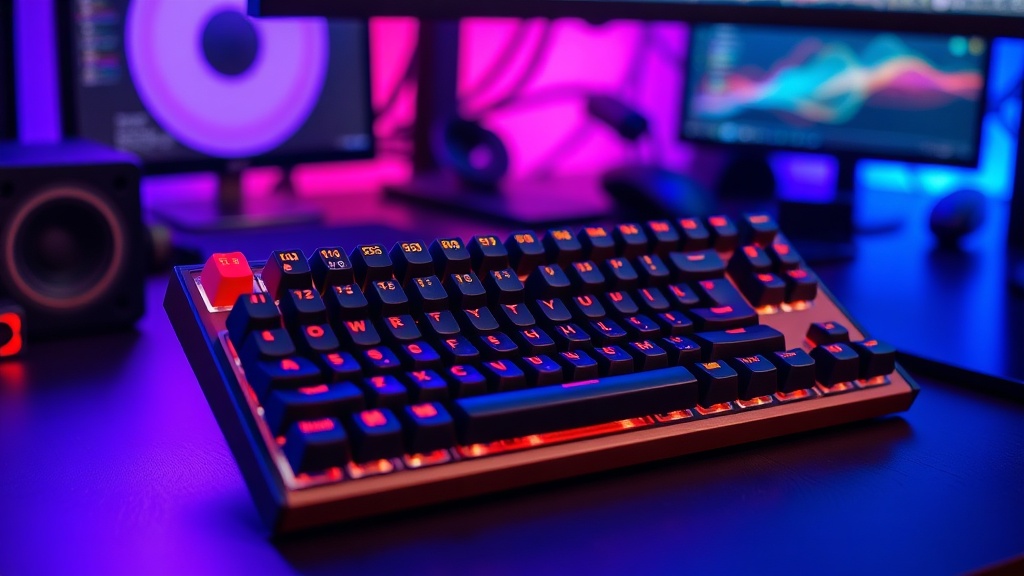
How to Build a Custom Mechanical Keyboard for Your Setup

This guide provides a technical breakdown of the components, tools, and assembly processes required to build a custom mechanical keyboard. You will learn how to select a compatible chassis, switch types, and keycaps, as well as the specific steps for soldering or hot-swapping components to create a personalized tactile experience.
Understanding the Core Components
A custom mechanical keyboard is more than just a peripheral; it is a modular system where every part affects the acoustic profile and tactile feedback. Before purchasing parts, you must ensure compatibility between the PCB (Printed Circuit Board), the case, and the mounting style.
The Printed Circuit Board (PCB)
The PCB is the brain of your keyboard. It contains the microcontroller and the circuitry that registers keypresses. When choosing a PCB, you must decide between two primary types: Hot-swap and Solderable. A hot-swap PCB allows you to plug switches directly into the board without any permanent connections, making it ideal for beginners or those who enjoy testing different switches frequently. A solderable PCB requires a soldering iron to permanently attach the switch pins to the board, offering more stability and fewer compatibility issues with non-standard switch pins.
The Case and Mounting Styles
The case provides the structural integrity and significantly influences the sound profile (often referred to as "thock" or "clack"). Common materials include:
- Aluminum: Offers a premium, heavy feel and a more rigid typing experience.
- Polycarbonate: A plastic option that provides a softer, more dampened sound and allows for RGB light diffusion.
- ABS/PBT Plastic: Lightweight and cost-effective, often found in entry-level custom kits.
Beyond the material, consider the mounting style. Tray mount is the most common and budget-friendly, where the PCB is screwed directly into the case. Gasket mount, however, uses small gaskets (often silicone or poron) between the plate and the case to decouple the assembly, resulting in a more flexible, cushioned typing feel that reduces hand fatigue during long sessions.
The Plate
The plate sits above the PCB and holds the switches in place. The material of the plate dictates the stiffness of the keyboard. An aluminum or brass plate will feel stiff and produce a higher-pitched sound, while a FR4 (fiberglass) or POM (polyacetal) plate will offer more flex and a deeper acoustic profile. If you are looking to design a cozy gaming nook, a softer plate material can help create a more relaxed, non-intrusive typing environment.
Selecting Your Switches and Keycaps
The switch is the most subjective part of the build. It determines how much force is required to actuate a key and how much tactile or auditory feedback you receive.
Switch Types
Switches generally fall into three categories:
- Linear: These have a smooth, consistent keystroke from top to bottom with no tactile bump. Examples include the Cherry MX Red or Gateron Black Ink. These are often preferred for rapid-fire gaming.
- Tactile: These feature a noticeable "bump" at the actuation point, providing physical feedback that a keypress has occurred. The Bobas U4T is a highly regarded tactile switch for enthusiasts.
- Clicky: These provide both a tactile bump and an audible "click" sound. The Kailh Box Navy is known for a very sharp, loud click.
Keycap Profiles and Materials
Keycaps are the interface between your fingers and the machine. The material is usually either ABS (Acrylonitrile Butadiene Styrene) or PBT (Polypropylene Butylene Terephthalate). PBT is generally preferred for long-term use because it is more durable and resistant to the "shine" that develops on ABS plastic over time.
Keycap profiles refer to the height and shape of the keys. Common profiles include:
- OEM Profile: The standard, sculpted height found on most pre-built gaming keyboards.
- Cherry Profile: A lower, more ergonomic profile that many enthusiasts prefer for typing precision.
- SA Profile: Very tall, spherical, and vintage-looking, though they can be cumbersome for high-speed gaming.
The Assembly Process: Step-by-Step
Once you have gathered your components—PCB, Case, Plate, Switches, Stabilizers, and Keycaps—follow these steps to ensure a successful build.
Step 1: Testing the PCB
Before you install a single switch, you must test the PCB. Connect the PCB to your computer via USB and use a website like Keyboard Tester. Use a pair of metal tweezers to bridge the two contact points of each switch socket. If the computer registers a keypress for every contact point, your PCB is functional. This step prevents the frustration of finishing a full build only to realize a single key is dead.
Step 2: Preparing the Stabilizers
Stabilizers are the mechanisms placed under larger keys (like the Spacebar, Shift, and Enter) to prevent them from wobbling. For a high-quality build, you should "lube" your stabilizers. Apply a small amount of Krytox 205g0 or Permatex Dielectric Grease to the metal wires and the plastic housings. This eliminates the "rattle" often heard in cheaper keyboards. Once lubed, snap or screw the stabilizers onto the PCB.
Step 3: Installing the Plate and Switches
Lay the plate over the PCB. If you are using a hot-swap board, begin by inserting switches in the corners and the center to align the plate and PCB. Ensure the metal pins of the switches are perfectly straight before pressing them in. If a pin is bent, it will not make contact and may even damage the socket. If you are using a solderable PCB, you will now solder each pin to the PCB using a soldering iron and 60/40 leaded solder.
Step 4: Case Assembly and Final Testing
Place the assembled PCB/Plate unit into the case. Depending on your mounting style, you will either screw the PCB into the case or place it onto the gaskets. Secure the assembly with the provided screws, being careful not to overtighten, which can cause the PCB to flex or crack. Once the assembly is inside the case, plug it in one last time and test the keys through the gaps in the case to ensure no connections were loosened during assembly.
Step 5: Adding Keycaps
The final step is the most rewarding. Press your keycaps onto the switch stems. Ensure they are seated firmly. If you are using a non-standard layout (like a 75% or an Alice layout), double-check that your keycap set includes the specific modifiers required for your board.
Maintenance and Longevity
A custom keyboard is an investment in your workspace. To maintain the tactile feel and aesthetic, perform basic maintenance regularly. Use a keycap puller to remove caps every few months for a deep clean. Use compressed air to blow out dust and debris from between the switches, and use a microfiber cloth with a tiny amount of isopropyl alcohol to clean the surfaces of the keycaps.
If you find the sound profile is too loud or too quiet, you can further refine it by adding "foam damping." Placing a thin layer of Poron foam between the PCB and the case can significantly dampen hollow sounds and create a more cohesive, premium acoustic experience.
Steps
- 1
Choose Your Form Factor and PCB
- 2
Select Your Switch Type
- 3
Pick Aesthetic and Tactile Keycaps
- 4
Assemble and Test